Import & Export
The content module allows importing and exporting of multiple items from and to files respectively.
Import Items
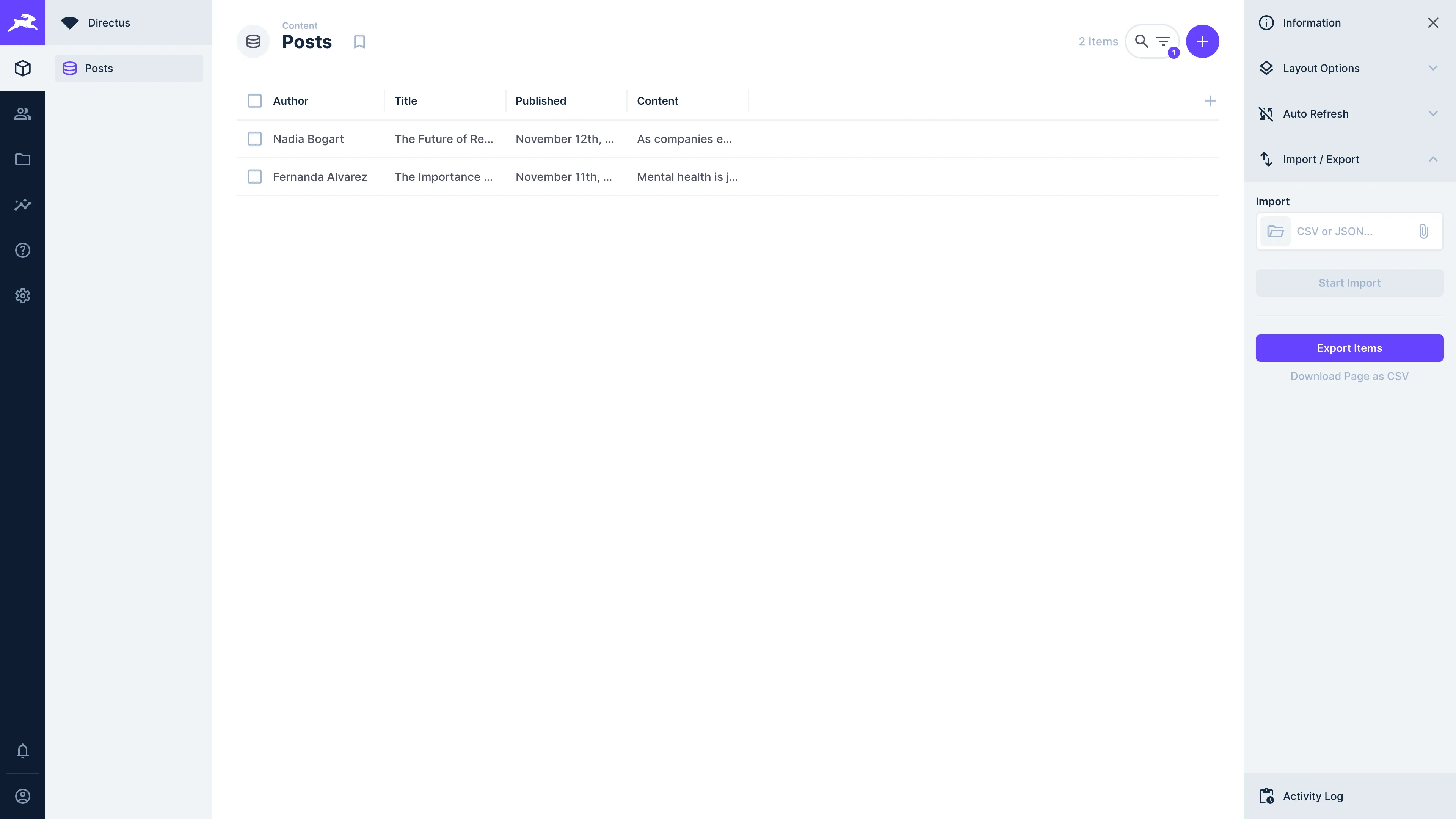
You can import JSON or CSV files into your collection as items.
To import Items from a file, navigate to the collection and click "Import / Export" in the sidebar. Click into the import search box. A file browser will open. Once a file has been selected, click on "Start Import" to import the items.
The items will now be in the collection, and the file itself will not be stored in the Directus project.
MAX_IMPORT_ERRORS, after which the import is cancelled.Export Items
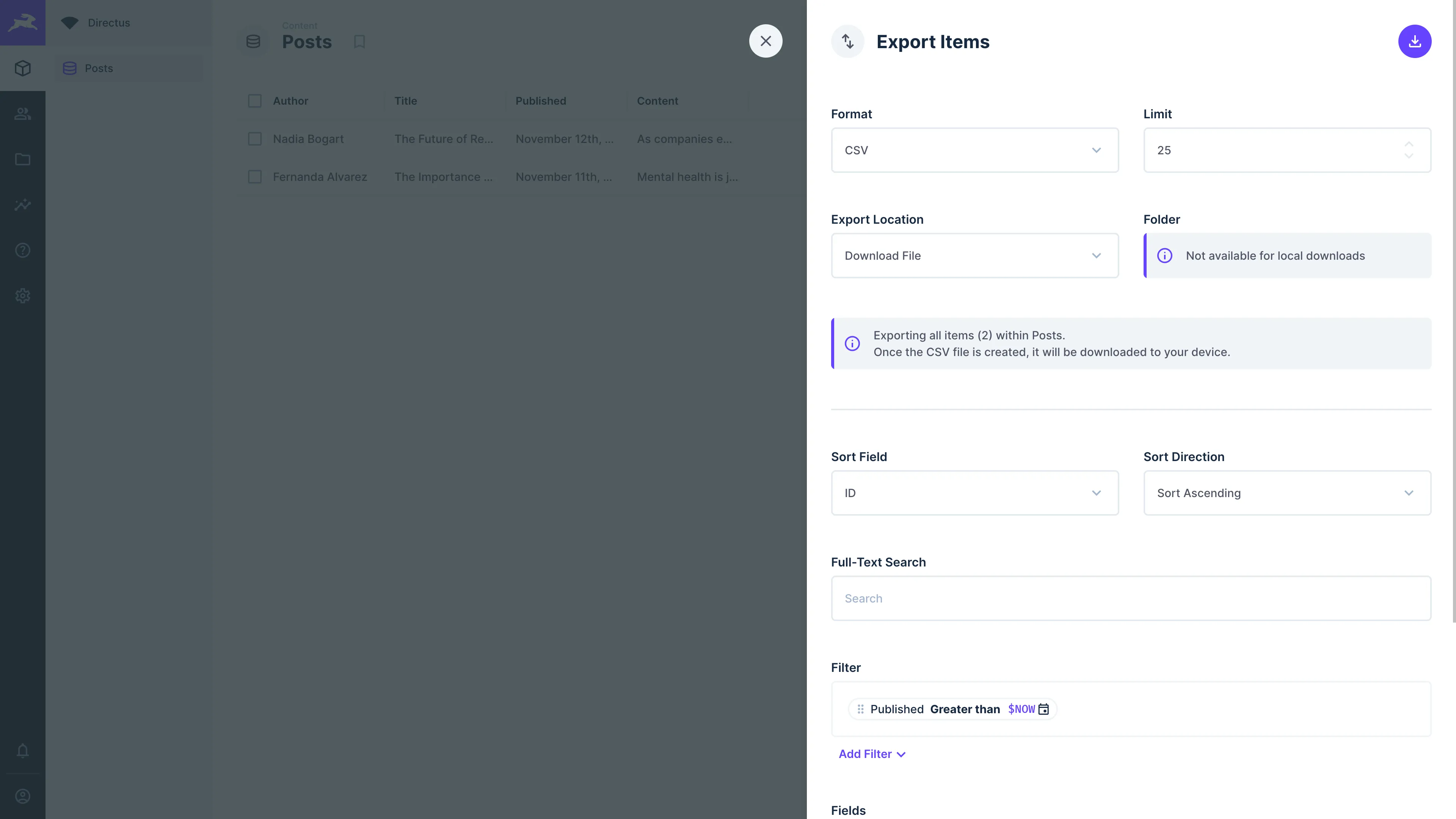
When exporting items, the export items menu provides granular control over exactly which items and fields are exported, how they are exported, and where they are exported.
To export items, follow the steps below, navigate to the desired collection and select "Import / Export" from the sidebar. Click on "Export Items" and the export items menu will appear. Select the desired format from CSV, JSON, XML, or YAML and click to download the file.
Export Items Menu
This menu provides granular control over exactly which items and fields are exported, how they are exported, and where they are exported.
| Item | Description |
|---|---|
| Format | Choose to export items as CSV, JSON, XML, or YAML. |
| Limit | Set the maximum number of items to be exported. |
| Export Location | Download the export file directly to your machine or to the file library. |
| Folder | Choose the folder to save to (if export location is the File Library). Defaults to the Default Exports Folder, or the Default Folder if none is set. |
| Sort Field | Choose field to sort items by. |
| Sort Direction | Choose to sort items in ascending or descending order. |
| Full-Text Search | Limit exported Items to ones which matched as search results. |
| Filter | Limit exported items with a filter. |
| Fields | Add, remove, and re-order the item fields that will be exported. |
Exports Saved to the File Library
Exports of 2,500 or more items, or more items than QUERY_LIMIT_MAX allows, are processed in batches and always saved to the File Library.
Exports saved to the File Library without a folder go to the Default Exports Folder set in Settings → Files & Storage. If no Default Exports Folder is set, they go to the Default Folder, then the root of the File Library.
The export menu only shows options the current user has permission to use:
- The File Library location is only available to users with create access on
directus_files. If an export is too large to download and the user cannot save it to the File Library, the export is blocked. - The Folder picker is only available to users with read access on
directus_folders. Other users see a notice stating where the file will be saved.
Get once-a-month release notes & real‑world code tips...no fluff. 🐰